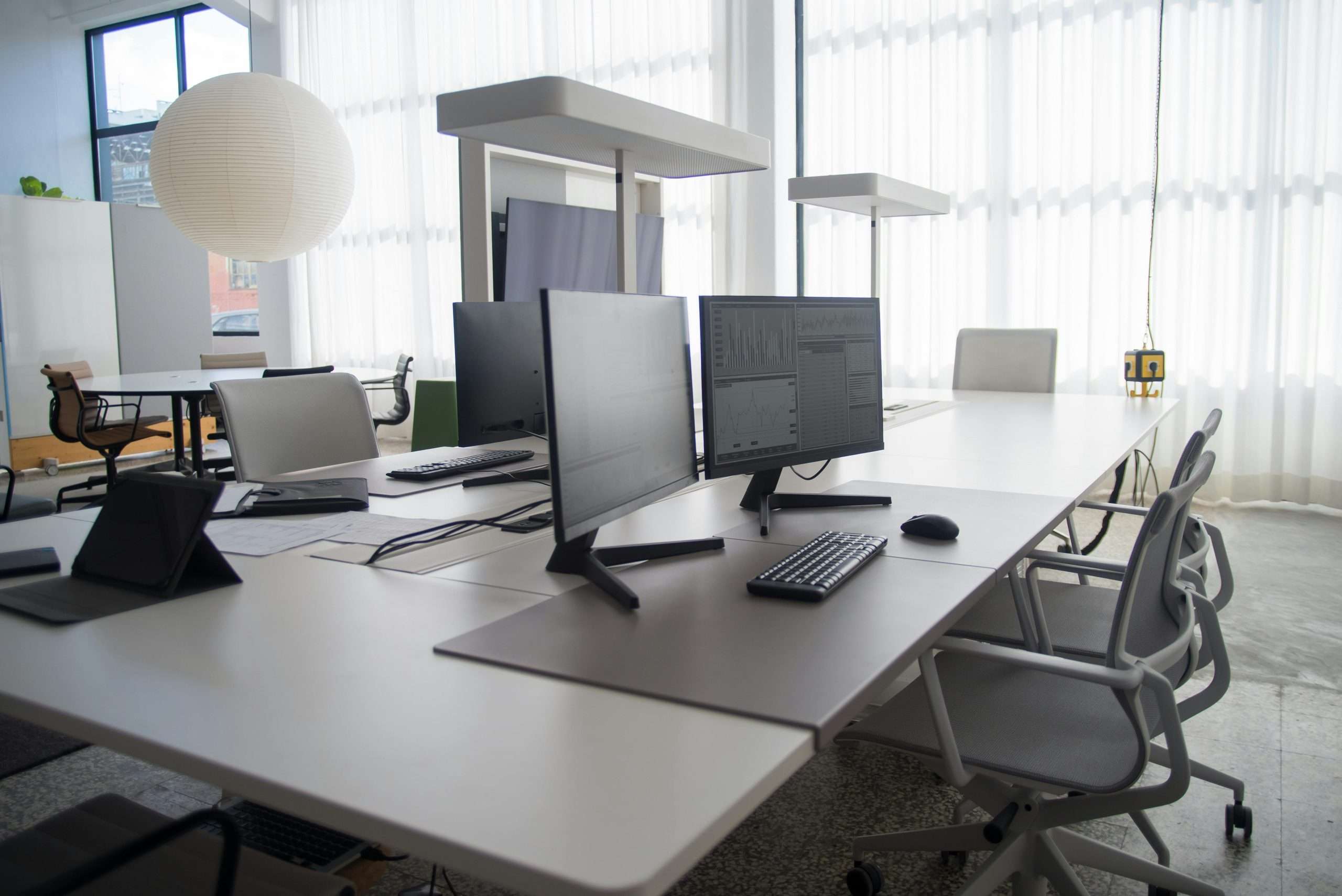

The best second monitors for introvert developers are displays that reduce eye strain, minimize distraction, and support the kind of deep, sustained focus that introverted minds do best. Look for IPS panels with accurate color, matte anti-glare coatings, adjustable ergonomics, and screen sizes between 24 and 27 inches. The right setup doesn’t just add pixels, it protects the mental environment where your best thinking happens.
Quiet focus isn’t a luxury. For those of us who do our best thinking when the noise drops away, the physical setup of a workspace matters more than most people realize. A second monitor can either extend that focused state or fragment it completely, depending on what you choose and how you configure it.
My own relationship with workspace design started in the agency world, where open offices were treated as a badge of culture. I spent years in environments built for extroverted energy, loud, collaborative, visually chaotic. My best thinking happened early in the morning before anyone else arrived, or late at night after the building emptied out. I didn’t fully understand why until I stopped fighting my wiring and started designing around it.
A second monitor was one of the first practical changes I made. The difference wasn’t just productivity. It was mental clarity. Having reference material on one screen and active work on another meant fewer context switches, less cognitive friction, and longer stretches of uninterrupted flow. That mattered enormously to me as someone whose best work emerges from depth, not speed.

If you want to go deeper on how workspace design connects to introvert productivity, the Introvert Productivity hub covers the full picture. This article focuses specifically on the monitor choices that support focused, low-distraction work environments.
Why Does Screen Choice Actually Matter for Deep Focus Work?
Most monitor buying guides treat this as a purely technical decision. Resolution, refresh rate, response time. Those things matter for gaming. For focused knowledge work, the variables that matter most are different: panel type, coating, brightness range, and how the display behaves in low-light conditions.
What’s your personality type?
Take our free 40-question assessment and get a detailed personality profile with dimension breakdowns, context analysis, and personalised insights.
Discover Your Type8-12 minutes · 40 questions · Free
Eye strain is a real productivity killer. A 2021 report from the American Optometric Association found that digital eye strain affects roughly 65 percent of Americans who use screens regularly, with symptoms including headaches, blurred vision, and difficulty concentrating. For developers and writers who spend eight to twelve hours in front of displays, panel quality isn’t a preference, it’s a health consideration. You can find more on this through the American Optometric Association.
IPS panels, which stands for In-Plane Switching, render color more accurately and maintain consistent image quality at wider viewing angles than older TN panels. That consistency reduces the subtle visual strain that comes from colors shifting as you move your head. For long coding sessions or writing marathons, that difference accumulates into something you feel by mid-afternoon.
Matte coatings matter for a different reason. Glossy screens reflect ambient light, which creates a low-level visual noise that your brain has to filter out continuously. That constant filtering is cognitively expensive. A matte anti-glare coating eliminates most of that reflection, which means fewer micro-interruptions and a cleaner visual field.
The American Psychological Association has documented how environmental distractions, even subtle ones, fragment attention and reduce the quality of complex cognitive work. For introverted developers whose productivity depends on sustained concentration, removing visual noise from the environment is a meaningful investment.
| Rank | Item | Key Reason | Score |
|---|---|---|---|
| 1 | IPS Panel Technology | Offers accurate color reproduction and wide viewing angles that reduce visual fatigue significantly during focused work sessions. | |
| 2 | Monitor Ergonomics Setup | Top of monitor at or slightly below eye level, 20 to 28 inches distance prevents neck tension and sustains concentration. | |
| 3 | 24-inch 1080p Monitor | Comfortable visual range that doesn’t require head movement, keeping attention anchored without constant scanning. | |
| 4 | 27-inch 1440p Monitor | Provides more real estate without pushing content to peripheral vision in distracting ways for focused developers. | |
| 5 | USB-C with Power Delivery | Single cable connects laptop to monitor, passes display signal, and charges simultaneously, eliminating cable clutter. | |
| 6 | Dual Monitor Productivity Gain | Reduces time and cognitive cost of switching between applications in knowledge work by significant margin. | 20 to 30 percent |
| 7 | Primary Screen Active Work | Dedicated to current task only, with no browser tabs or messaging apps, minimizing distraction and decision fatigue. | |
| 8 | Secondary Screen Reference Material | Contains documentation and design files for consulting rather than demanding attention, supporting focused workflow. | |
| 9 | Blue Light Filtering Hardware | Reduces high-energy blue light 400-490 nanometer range without significantly affecting color accuracy for evening work. | |
| 10 | DisplayPort 1.4 Connectivity | Preferred for higher resolutions and refresh rates, though 60Hz is adequate for focused development work needs. | |
| 11 | Digital Eye Strain Prevention | Affects 65 percent of screen users with headaches and blurred vision, making panel quality a health consideration. | 65 percent |
| 12 | TN Panel Technology | Oldest and cheapest option with fast response times for gaming, but produces washed-out colors and poor viewing angles. |
What Screen Size Works Best for a Focused Developer Setup?
Size feels like the most obvious variable, and it’s also the one most people get wrong. Bigger isn’t always better, particularly when the goal is focus rather than multitasking.
A 24-inch monitor at 1080p sits in a comfortable visual range that doesn’t require constant head movement. You can take in the full screen without scanning, which keeps your attention anchored. A 27-inch monitor at 1440p offers more real estate without pushing content to the edges of your peripheral vision in a distracting way. Both are solid choices depending on your desk depth and how far you sit from the screen.
Ultrawide monitors, typically 34 inches or wider, are popular in productivity circles. My honest take: they can work well if you’re disciplined about how you use them, but the extra horizontal space often becomes a dumping ground for browser tabs and messaging apps that chip away at focus. I ran a three-monitor setup at one agency for about a year before stripping back to two. The third screen was always showing something that pulled my attention sideways.
For most developers doing focused work, a 24 to 27-inch secondary monitor is the sweet spot. It adds meaningful screen real estate without creating visual sprawl.

Which Panel Type Should Introvert Developers Prioritize?
Panel type is the single most important technical decision in this category, and it’s worth understanding why before looking at specific models.
TN panels are the oldest and cheapest technology. They have fast response times, which makes them popular for gaming, but they produce washed-out colors and shift noticeably when viewed from an angle. For focused work, they’re the weakest choice.
IPS panels offer accurate color reproduction and wide viewing angles. They’ve become the standard for professional creative work and are increasingly common in the mid-range market. For developers, the color accuracy matters less than it does for designers, but the consistent image quality and wider viewing angles reduce visual fatigue significantly.
VA panels sit between the two. They offer deeper blacks than IPS and better contrast ratios, which can make them appealing for low-light work environments. Their weakness is slower response times and some ghosting on fast-moving content, which isn’t a concern for most development work. VA panels are a reasonable choice if you work in a dim room and want richer contrast.
OLED panels are appearing in monitors now, and they produce extraordinary image quality. They’re expensive, and there are legitimate concerns about burn-in with static interface elements, which is exactly what developer environments tend to display. Worth watching as the technology matures, but not the practical choice for most people right now.
My recommendation: IPS for most setups, VA if you work in a consistently dim environment and value contrast over response time.
What Are the 7 Best Second Monitors for Developer Focus?
These seven models represent different price points and use cases. Each one earns its place here for specific reasons tied to focused, low-distraction work rather than gaming benchmarks or flashy features.
1. LG 27UK850-W (27-inch, 4K IPS)
This is the monitor I’d recommend to most developers who want a single upgrade that covers everything. The 27-inch IPS panel at 4K resolution produces crisp text rendering that makes long reading and coding sessions noticeably more comfortable. The matte coating handles ambient light well. USB-C connectivity with 60W power delivery means one cable connects your laptop and charges it simultaneously, which reduces desk clutter and the low-level irritation of cable management. Ergonomics are solid: height adjustment, tilt, and pivot are all available.
2. Dell UltraSharp U2722D (27-inch, 1440p IPS)
Dell’s UltraSharp line has earned its reputation over years of consistent quality. The U2722D hits the sweet spot of resolution and panel quality at a price that doesn’t require justification. The IPS Black panel technology delivers better contrast than standard IPS while maintaining the color accuracy and viewing angles the format is known for. The build quality is excellent, and the ergonomic stand is one of the best in this category. If you want a monitor that will perform reliably for five or more years without any surprises, this is it.
3. BenQ PD2725U (27-inch, 4K IPS)
BenQ designed the PD line specifically for professional work rather than gaming, and it shows. The PD2725U includes a built-in KVM switch, which lets you control two computers from a single keyboard and mouse setup. For developers who switch between a personal machine and a work laptop, that’s a meaningful quality-of-life feature. The panel is accurate, the matte coating is effective, and the Thunderbolt 4 connectivity is future-proof. It costs more than the Dell, but the KVM functionality justifies the premium if you run multiple machines.

4. ASUS ProArt PA278CV (27-inch, 1440p IPS)
The ProArt PA278CV is ASUS’s entry into the professional monitor space, and it delivers more than its price suggests. Factory calibration means color accuracy out of the box, which matters if your development work touches any visual design. The USB-C hub functionality is generous: multiple USB-A ports, HDMI pass-through, and 65W power delivery. The stand is fully adjustable. For developers who want professional-grade panel quality without paying professional-grade prices, this is the strongest value in the list.
5. Samsung ViewFinity S8 (27-inch, 4K IPS)
Samsung’s ViewFinity S8 brings 4K resolution to a mid-range price point that would have been impossible a few years ago. The IPS panel handles color and viewing angles well. The integrated USB-C hub with 90W power delivery is the most generous charging capacity in this category, which matters if you’re running a power-hungry laptop. The design is minimal and clean, which sounds like a small thing but contributes to a workspace that feels intentional rather than cluttered. A good choice if maximum charging power and 4K resolution are your priorities.
6. LG 32UN880-B Ergo (32-inch, 4K IPS)
The Ergo stand is what makes this monitor distinctive. Instead of a traditional base that sits on your desk, it clamps to the desk edge and uses an articulating arm to position the screen. That means your desk surface stays completely clear, which is a meaningful benefit if you value an uncluttered physical workspace. The 32-inch 4K IPS panel is excellent. The arm allows more precise positioning than most monitor stands, including pulling the screen close for focused reading or pushing it back for a wider field of view. It’s larger than my usual recommendation, but the ergonomic flexibility compensates.
7. AOC Q27P3CV (27-inch, 1440p IPS)
The AOC Q27P3CV is the budget-conscious choice that doesn’t compromise on the things that matter most for focused work. The IPS panel at 1440p produces clean, accurate color. The matte coating handles reflections effectively. The USB-C hub with 65W charging covers modern laptop connectivity. The stand offers height, tilt, and pivot adjustment. At its price point, it competes directly with monitors that cost significantly more and holds its own on every metric that affects daily focus and comfort. If budget is a genuine constraint, this is where to start.

How Does Ergonomics Affect Sustained Focus Over Long Sessions?
Screen quality gets most of the attention in monitor reviews, but ergonomics may matter more for daily productivity. A monitor you can’t position correctly becomes a source of physical discomfort that fragments concentration as reliably as a noisy open office.
The general guidance from occupational health professionals is that the top of your monitor should sit at or slightly below eye level, at a distance of roughly 20 to 28 inches from your face. Your neck should be in a neutral position, not tilted up or down. Most people who experience neck and shoulder tension during long work sessions have monitors positioned too low, often on a desk without any stand adjustment.
The Mayo Clinic’s ergonomics guidance covers this in detail, and it’s worth reading if you spend significant time at a desk. You can find their recommendations at Mayo Clinic. The practical takeaway: invest in a monitor with full ergonomic adjustment, height, tilt, swivel, and pivot, or pair your monitor with a quality aftermarket arm.
Pivot functionality, the ability to rotate the monitor 90 degrees into portrait orientation, is particularly useful for developers. Reading long files of code or documentation in portrait mode reduces horizontal scrolling and keeps more content visible simultaneously. Not everyone uses this feature, but having the option costs nothing if the stand supports it.
I learned the ergonomics lesson the hard way. At one agency, I spent about eighteen months working at a desk where my monitor was too low and slightly off-center. By the end of most days, I had a persistent ache across my upper back that I attributed to stress. When I finally adjusted the setup correctly, the ache disappeared within two weeks. The physical environment shapes the mental experience more directly than we usually acknowledge.
Does Blue Light Filtering Actually Help With Focus and Sleep?
Blue light filtering has become a standard marketing feature for monitors, and the science behind it is more nuanced than the marketing suggests.
Screens emit blue light across the visible spectrum. High-energy blue light, particularly in the 400 to 490 nanometer range, has been associated with disruption of melatonin production, which affects sleep quality. A 2019 study published through the National Institutes of Health found that evening screen exposure can delay sleep onset and reduce sleep quality, particularly in people who are sensitive to light. The NIH maintains extensive research on this topic at National Institutes of Health.
Hardware blue light filters, built into the monitor itself, reduce the amount of high-energy blue light emitted without significantly affecting color accuracy. Software solutions like Windows Night Light or macOS Night Shift shift the color temperature of the display toward warmer tones. Both approaches help, though hardware filtering tends to be more consistent.
The practical recommendation: use a monitor with a hardware blue light filter or low-blue-light mode for evening work sessions. Pair it with a software color temperature shift after sunset. Neither will completely eliminate the impact of screen use on sleep, but both reduce it meaningfully.
For focused daytime work, the more relevant factor is brightness. A monitor that auto-adjusts to ambient light conditions reduces the contrast between your screen and the surrounding environment, which is one of the primary drivers of eye fatigue during long sessions. Several monitors on this list include ambient light sensors for this reason.
How Should You Configure a Dual Monitor Setup for Minimal Distraction?
Buying the right monitor is half the equation. How you configure the setup determines whether it actually supports focused work or simply gives you more surface area for distraction.
The most effective approach I’ve found, and one I’ve refined over years of managing creative teams in agency environments, is to treat the two screens as distinct functional zones rather than one continuous desktop.
Primary screen: active work only. Whatever you’re building, writing, or debugging lives here. No browser tabs, no messaging apps, no email.
Secondary screen: reference material only. Documentation, specifications, design files, research. Content you’re consulting, not content that’s demanding your attention.
This zoning approach reduces the number of decisions you make about where to put things, which matters because decision fatigue is real. A 2011 study cited by the Harvard Business Review found that cognitive resources deplete throughout the day, and that small decisions accumulate into meaningful fatigue. You can explore more on this through Harvard Business Review. Reducing the cognitive overhead of workspace management preserves more mental energy for the actual work.
Notification management matters as much as physical configuration. A second monitor doesn’t help your focus if it’s displaying a continuous stream of Slack messages and email alerts. Silence notifications on both screens during focused work blocks. The world rarely needs a response in under two hours, regardless of what the communication culture at your workplace suggests.
Color temperature consistency between your two monitors is worth the effort to configure. Mismatched color temperatures, where one screen looks warm and the other looks cool, create subtle visual tension that adds up over a long session. Most modern monitors allow color temperature adjustment in their on-screen display settings. Match them as closely as you can.

What Connectivity Features Matter Most for a Modern Developer Workstation?
Connectivity is where monitor specs get technical quickly, and where the gap between what’s marketed and what’s useful becomes apparent.
USB-C with power delivery is the feature that has most changed how I think about monitor setups. A single USB-C cable that connects your laptop to the monitor, passes display signal, and charges the laptop simultaneously eliminates the cable tangle that used to be part of every desk setup. If you use a modern laptop, prioritize monitors with USB-C and at least 65W power delivery. Ninety watts is better if you run a power-hungry machine.
HDMI 2.0 or DisplayPort 1.4 are both solid choices for desktop connections. DisplayPort is generally preferred for higher resolutions and refresh rates, though for focused development work at 60Hz, either works fine.
Built-in USB hubs are more useful than they sound. Having two or three USB-A ports on the back of your monitor means your keyboard, mouse, and any peripherals connect to the monitor rather than running cables directly to your laptop. When you disconnect the single USB-C cable to take your laptop to a meeting, everything else stays in place. Reconnecting is one cable, not four.
KVM switches, as mentioned in the BenQ entry above, are worth understanding if you regularly work on multiple machines. A KVM (Keyboard, Video, Mouse) switch allows a single keyboard and mouse to control multiple computers, with the monitor displaying whichever machine is active. For developers who maintain separate personal and work setups, this eliminates the friction of switching between environments.
The U.S. Department of Energy has noted that monitors account for a meaningful portion of office energy consumption. Monitors with automatic brightness adjustment and aggressive sleep modes reduce both energy use and the subtle heat output that can affect comfort in a small home office. Worth checking the energy certification on any monitor you’re considering.
Is a Second Monitor Worth It for Remote Developers Working From Home?
The short answer is yes, almost universally. The longer answer depends on what you’re trying to accomplish and how your work is structured.
Remote work has removed many of the environmental controls that office setups provided. You’re responsible for your own workspace ergonomics, your own noise management, and your own focus infrastructure. A second monitor is one of the highest-return investments in that infrastructure.
A 2020 productivity analysis referenced by Psychology Today found that dual monitor setups can increase productivity in knowledge work by 20 to 30 percent, primarily by reducing the time and cognitive cost of switching between applications. You can explore the psychology of workspace design further at Psychology Today. For developers who regularly reference documentation while writing code, that reduction in context switching is particularly meaningful.
The workspace investment question comes up often in conversations I have with people who are building home offices for the first time. My consistent advice: spend more on the things you interact with every hour and less on things that matter less. Your monitor, your chair, and your keyboard are the three things you touch constantly. A second quality monitor at $300 to $500 will affect your daily experience more than a $300 upgrade to almost anything else in your setup.
There’s also a psychological dimension worth naming. For introverts who do their best work in controlled, intentional environments, a well-configured workspace signals to your own brain that this is a place for serious work. The physical environment shapes cognitive state in ways that are well-documented. Creating a workspace that feels calm, organized, and purposeful isn’t just aesthetically pleasing. It’s functionally useful.
Explore more strategies for building a productive, introvert-friendly workspace in our Introvert Productivity hub.
About the Author
Keith Lacy is an introvert who’s learned to embrace his true self later in life. After 20 years in advertising and marketing leadership, including running agencies and managing Fortune 500 accounts, Keith now channels his experience into helping fellow introverts understand their strengths and build fulfilling careers. As an INTJ, he brings analytical depth and authentic perspective to every article, drawing from both professional expertise and personal growth.
Frequently Asked Questions
What is the best second monitor for developers who need to focus for long hours?
The best second monitor for long-focus development work is a 27-inch IPS panel with a matte anti-glare coating, full ergonomic adjustment, and USB-C connectivity. The Dell UltraSharp U2722D and LG 27UK850-W are both excellent choices. IPS panels reduce eye strain during extended sessions, matte coatings eliminate distracting reflections, and proper ergonomic positioning prevents the physical discomfort that breaks concentration over time.
Does screen size affect focus and productivity for developers?
Screen size affects productivity primarily through how much content you can view without scrolling and how much visual scanning your eyes have to do. A 24-inch monitor at 1080p keeps content within a comfortable visual range without head movement. A 27-inch at 1440p adds meaningful real estate while remaining manageable. Ultrawide monitors above 34 inches can become distracting because the extra space often fills with attention-competing applications rather than focused work content.
Is IPS better than VA for a developer’s second monitor?
IPS panels are the better choice for most developers because they offer consistent color accuracy, wide viewing angles, and reliable image quality that reduces visual fatigue during long sessions. VA panels produce deeper blacks and better contrast ratios, which can be advantageous in dim work environments. If you work primarily in a well-lit room and value color consistency, choose IPS. If you work in a dim environment and want richer contrast, VA is a reasonable alternative.
How should I arrange dual monitors to minimize distraction?
Arrange dual monitors by assigning each screen a specific functional zone. Keep your primary monitor for active work only: code, writing, or the application you’re currently building. Reserve the secondary monitor for reference material only: documentation, specifications, or research you’re consulting. Silence all notifications on both screens during focused work blocks. Match the color temperature settings on both monitors to reduce visual tension between the two displays.
What connectivity features should I prioritize in a second monitor for remote work?
Prioritize USB-C with power delivery of at least 65 watts, which allows a single cable to handle display signal and laptop charging simultaneously. A built-in USB hub with two or more USB-A ports keeps peripherals connected to the monitor rather than your laptop, making it easy to disconnect for meetings and reconnect with one cable. If you work on multiple computers, look for a monitor with a built-in KVM switch, which the BenQ PD2725U offers, to control both machines from a single keyboard and mouse.